Wednesday, April 06, 2016
Welcome! Purpose and Introduction!
Welcome to the Griffith Park Genealogy Page! (Click to read more of the introduction and welcome)

Sunday, July 13, 2014
Heirlooms and Documents: Preservation and Donation
 |
| Not...best practice... |
Depending on how many original documents and photographs you have, and what format they come in, as well as what they are printed on, this may or may not be a pressing issue for you.
Not all documents are 8.5"x11" and in good condition. Many may be bound books, rolled documents, scrapbooks, fastened documents, folded documents, hand-written documents, unstable items, oversized items, or damaged items, or a combination of the above - each with their own special and unique considerations. So, what to do?
While I have seen about a hundred articles all detailing nifty file-storage-organization-systems, I generally recommend that people convert their files to digital format so they aren't using the originals repeatedly for research, and proceed directly to storage and preservation. How you wish to store them? That's up to you. By surname of the head of the home of the family would be my first recommendation, but again, that is up to you.
For family heirlooms (e.g. military medals, military uniforms, antique household items) if they are something you wish to keep, I would recommend researching how best to preserve them for posterity. Each are going to have their own considerations, and as the number of different items cannot possibly be listed or addressed here, I will turn you to your own research.
However, if you are unable to keep them, you may consider donating them to a local historical society or museum. Often they will take donated items of a historical or significant nature and display them. Call around, ask and do your homework. Today's items are tomorrow's history!
Depending on the documents and photographs, some historical societies may take your genealogical papers as well for the preservation of posterity. Often they have more resources than might be available at home for document storage and preservation, long term. Again, call and do your homework.
 |
| Might need some TLC |
But what of document storage and preservation? Briefly:
"Paper preservation requires proper storage and safe handling practices. Your family documents will last longer if they are stored in a stable environment, similar to that which we find comfortable for ourselves: 60-70 degrees F; 40-50% relative humidity (RH); with clean air and good circulation. High heat and moisture accelerate the chemical processes that result in embrittlement and discoloration to the paper. Damp environments may also result in mold growth and/or be conducive to pests that might use the documents for food or nesting material. Therefore, the central part of your home provides a safer storage environment than a hot attic or damp basement.
Light is also damaging to paper, especially that which contains high proportions of ultra violet, i.e., fluorescent and natural day light. The effects of light exposure are cumulative and irreversible; they promote chemical degradation in the paper and fade inks. It is not recommended to permanently display valuable documents for this reason. Color photocopies or photographs work well as surrogates.
Family papers should be stored in appropriate sized enclosures, such as a folder, box, portfolio, etc., that will provide physical protection as well as protection from light and dust. The enclosure itself should be made of stable permanent quality materials that will not contribute to the document's deterioration" (From the National Archives.)
 |
| Don't forget your map collection.... |
Given that the National Archives arose out of the loss of the 1890 federal census to a fire, and is responsible for the keeping of the US Constitution, Declaration of Independence, Magna Carta and many other historical items - I think it is safe to say that they know what they are talking about and you can rely on the information given by them.
At any rate, always do your homework and have fun!
Saturday, July 12, 2014
Using Google Effectively in Genealogy
While we use websites very often in genealogy, and message boards, Google its self can be a treasure trove of information! I've actually attended a class on how to use Google but this is the first time I've seen a set of notes on it that was complete enough to post! This is taken from: http://www.barbsnow.net/GoogleGenealogy.htm
Piece of advice though? Remember that genealogy without sources is mythology! Remember to verify whatever you find this way just as you would any other way. Google can turn up some fantastic results but be sure to check them.
Your Guide to Finding Ancestors with Google
Google Search Tips
Often your search results in too many hits to wade through...you need the power of Google's ADVANCED SEARCH
(Link is in tiny letters, to the right of the search box).
You want to find out something about your Powers Family,
specifically John Powers who was born in 1788 in County Cork Ireland,
married in Ireland, Matilda Moore. He died 1862 in Flint, Genessee Co.
Michigan (this is a made up example; don't add him to your family tree!)
(Link is in tiny letters, to the right of the search box).
- powers family finds the two words anywhere on the page; "powers family" finds the phrase.
- "John Powers" "Matilda Moore" finds pages with both phrases --although not necessarily married ot each other. . (But won't find John C. Powers married Matilda Jane Moore )
- "Matilda * Moore" will find Matilda Moore, Matilda Jane Moore, Matilda Ann Moore, etc. The asterisk will not truncate a word; it wouldn't, for example, find Matildalee. Notice that the whole phrase is in quotation marks; an asterisk won't work without them.
- powers -austin allows you to skip all the pages about Austin Powers (no space after the -)
- +powers finds only powers, not power or powering, for example.
- ****Remember: the name may be reversed, especially in an index. Try "Powers, John" as well as John Powers
- Try to add specific information, e.g. try +Powers "County Cork" finds Powers (but not Power) and the phrase "County Cork" on the same page.
- What other word would be likely to be on the page? Keep narrowing down with less common words... John Powers Flint Genesee Cemetery. Google assumes AND between words, so any results page will contain all of these words (not necessarily close together).
- Powers ~genealogy finds pages with the words Powers and genealogy or synonyms for the word genealogy.
- Dates can be a way to limit results. "John Powers" 1788 will find pages with the phrase John Powers and the date 1788 on the page. If we knew only that he was born ca. 1788, we can search "John Powers" 1785...1791 to find pages with the phrase John Powers and any of the numbers 1785 thorough 1791.
- Too much to remember? Just use the advanced search pages
- YouTube video "Using Google to find gedcom files"
Getting the most from Google results
If you get results from a large genealogy site, e.g. Rootsweb, the results list may show a link to "more results from... " Clicking that link will bring up other hits from that site.Get a "file not found" message when you click the link? Go back to the results page and click "cached" to bring up a cached version of the page.
Beyond Basic Googling
Download the Google Toolbar so you don't have to keep going to http://www.google.com to make your searches. In addition to quick searching, this toolbar offers many helpful features. I particularly like the bookmarks tool, which allows me to save bookmarks on the web, so I can add them and find them from any computer. See the toolbar button gallery for a choice of Google tools. Here is a YouTube video that shows one helpful you can use the Google Toolbar for genealogy.Remember to use Google Images to see if you can find picture. Adding the words post card may find local pictures.
Search Google Books to find text in books that have been scanned. Some books are available for viewing on the web; some will refer you to where you can find the book. In the Google Books Advanced Search you can limit results to
(the default is all books)
You can search a selection of books included because of their genealogical value at the Google Thomas J. Kemp's Book Library
Easy Google Genealogy Searcher and Easy Google Genealogy Searcher II will help you construct searches.
Google Alerts will notify you by e-mail anytime the crawler finds a new instance of your search term. At first I loved this, but then I turned it off because I kept getting the same information over and over. Try it to see if you like it.
Build a custom google search to crawl a list of websites.
More information:
- GenealogyInTime:
- Hot Tips on How to Use Google for Genealogy Searches
- How to Use Google's Advanced Search for Geneaogy Part I and Part II.
- How to Refine Google Genealogy Searches
- Genealogy Guide to Google Country Search Engines
- Google limitations on Genealogy Searches
- About.com's "Googling Genealogy Style" (turn on your popup blocker, but worth reading )
- Google in Genealogy Searches -- A very helpful page.
- Tips for Using Google in Genealogy Searches -- keep scrolling past advertisements that pop up mid page. It's a long page with lots of tips.
- And find many more links on the Cyndi's List page "Googling for Grandma"
- And if you really want to understand Google, there are actually whole books written on the topic -- including one that applies only to genealogy: Google Your Family Tree
- And if you really want to understand Google, there are actually whole books written on the topic -- including one that applies only to genealogy: Google Your Family Tree
- Read Dick Eastman's column on this book -- but the most interesting part is the string of comments following his article, including a comment by the author.
- Here is another review,written by Leland Meitzler
- Watch and listen to an interview with the author, Dan Lynch.
- Work with his Genealogy PowerSearches described on his website.
Tuesday, July 08, 2014
Stuck? Bored? Just Been A While? Clean House!
 The abandoned basement. Unopened for years. Musty, dusty, rarely examined and entered, and yet, always worked around and by, but nobody has taken the time to examine the far forgotten corners where hidden treasures from years gone by lay undiscovered for some time.
So it can be with genealogy as well. Often we will do genealogy for years, months or even decades without looking back at some of the work we did long long ago. We get in a rush at times when we get excited and aren't quite as thorough as we should have been. Or, when we are new, we may not have yet standardized all our file types or file names, or simply made mistakes.
Maybe we have even hit a wall and do not know where else to research! Or we are simply tired of doing research for a while.
Take a break, and have fun above all. But if you're looking to do something "different", consider "cleaning house."
Go back and check your family file folders and make sure what is in there is supposed to be in there, and what belongs elsewhere gets put elsewhere.
Check that your backups work.
Check filenames that they are standardized.
Convert file formats if you want to (maybe you had stuff in JPEG and want it in TIFF).
 |
| Yamhill County Historical Society & Museum display from an outing |
Round out your work on Findagrave and add necessary details and link family members if you want to.
Add a few things to your genealogy blog if you have one that maybe you want to archive a bit better.
Check your Legacy or Rootsmagic (or whatever software you use) files for errors and duplicates.
De-fragment your drives and run checkdisks for errors.
Do enough of this and you may find someplace new to head.
Beyond this, you could even take a genealogy class or go to a local museum in an area your family lived in just to walk through history! It doesn't always have to be research! Get out, try something different, and if needs be - go back and clean house!
So! Bored? Stuck? Been awhile? Try something different!
Saturday, June 21, 2014
Historic Oregon Newspapers Access - University of Oregon Access

As I was walking through the Beaverton Library, I saw an advertisement for yet another link for Oregon Historical newspapers.
http://oregonnews.uoregon.edu/
This is provided through the University of Oregon - the other site that is particularly useful is through the Multnomah County Library, reported to be the most comprehensive search and database resource this side of the Mississippi. However, as Multnomah County's resources require a library card which you may not have obtained yet (available to anyone regardless of residence) this link above could be another great place to start. At any rate, here you go, have a look for free!
Sunday, March 23, 2014
Why We Do Indexing - A Short Story
I really liked this as it captured the spirit of genealogy as well as the need for it.
Saturday, March 15, 2014
Genealogy 'n' Peer Pressure
I enjoy the Pickles comic strip - the artist is LDS but this did make me think of something you run into when you do a bit of genealogy: looking at what your ancestors survived to bring you into the world.

Sunday, March 02, 2014
Multnomah Park Cemetery, Portland, Oregon, Internment Map (PDF)
As I am out and about doing cemetery work, I have noticed that not a lot of cemeteries have maps for their internments published online.
Often you have to go to their office and get a photocopy before you can find your way around. If you're lucky. Word to the wise: call and know before you go.
As a service to the public, I'm publishing here a link to the PDF copy of the Multnomah Park Cemetery burial layouts and numbering in Portland, Oregon.
While there are many cemeteries in Portland, and I do not have the space to do this for all cemeteries on this blog, I thought I would add a few of the more historical and prominent ones I have worked with.
I actually just got back from a historic and very very large cemetery that had this issue and wished someone else might have published the info for me.
So, to whoever, wherever, here you go!
Often you have to go to their office and get a photocopy before you can find your way around. If you're lucky. Word to the wise: call and know before you go.
As a service to the public, I'm publishing here a link to the PDF copy of the Multnomah Park Cemetery burial layouts and numbering in Portland, Oregon.
While there are many cemeteries in Portland, and I do not have the space to do this for all cemeteries on this blog, I thought I would add a few of the more historical and prominent ones I have worked with.
I actually just got back from a historic and very very large cemetery that had this issue and wished someone else might have published the info for me.
So, to whoever, wherever, here you go!
Saturday, February 22, 2014
Local Genealogy Societies
 Depending on where your research is concentrated, you may wish to consider joining a genealogical society dedicated to the locale you are primarily working in.
One of the local ones to this region is the Genealogical Forum of Oregon. They have a library with over 30,000 hard-copy titles, actively work to index records that aren't as publicly accessible, membership gives you access to Ancestry.com for a fraction of the price as buying Ancestry outright as well as they have seminars from time to time and personal help that you can request.
There are many others in Oregon, but I just use this for an example - for a list of genealogical organizations in Oregon, click HERE.
If you're stuck, look for a genealogical society to the locale you work with primarily and see what benefits they offer and whether membership is for you!
Friday, January 24, 2014
Genealogy: A Personal Responsibility
Of the commandments of the Lord to the children of men, redeeming the dead is one that can *only* be done by the members of this church. Note, I did not say "it can only be done by the church" but that it can only be done by the members. That's.....you. You're a member. You have ancestors. They brought you to life over centuries and millenia. Have you done their work? Have you thanked them for bringing you to this state of your eternal progression?
Well, here you go, this is one of your personal responsibilities.
Well, here you go, this is one of your personal responsibilities.
Thursday, November 28, 2013
How to Complete Your Entire Family Tree Fast and Easy!
(Notice I didn't say it would be accurate).
I don't know if the stuff you'd get from "plying" a family member with liquor is anything you'd want to put in your tree, there's skeletons enough without that kind of info....but I've seen a bit of work that looks like this is how it was done....and then done some myself that probably left questions as to my own sobriety when I was tired or rushing.
Slow down! And have fun. Speed is impressive, accuracy is useful.

I don't know if the stuff you'd get from "plying" a family member with liquor is anything you'd want to put in your tree, there's skeletons enough without that kind of info....but I've seen a bit of work that looks like this is how it was done....and then done some myself that probably left questions as to my own sobriety when I was tired or rushing.
Slow down! And have fun. Speed is impressive, accuracy is useful.
Thursday, November 21, 2013
Salvation For the Dead: A Missionary Activity
This is a great talk from General Conference in 1975 on temple work. The brother speaking was the then-driving force behind the church's family history program, Brother Theodore M. Burton, Assistant to the Twelve.
Back then, very little of what we have now was available, and the availability and access we have to our records is unbelievable. Brother Burton would have thought he went to heaven to see what we have now, and yet...more needs to be done and we don't do nearly what we should!
Some things have changed between then and now in terms of focus and expectations, but the one part that stuck out to me was that the dead have no other way but through us doing this work to receive the salvation that is available to them. Anyways, here's the video with a link to the conference talk afterwards.
And here's the link to read the talk:
Back then, very little of what we have now was available, and the availability and access we have to our records is unbelievable. Brother Burton would have thought he went to heaven to see what we have now, and yet...more needs to be done and we don't do nearly what we should!
Some things have changed between then and now in terms of focus and expectations, but the one part that stuck out to me was that the dead have no other way but through us doing this work to receive the salvation that is available to them. Anyways, here's the video with a link to the conference talk afterwards.
And here's the link to read the talk:
Friday, November 15, 2013
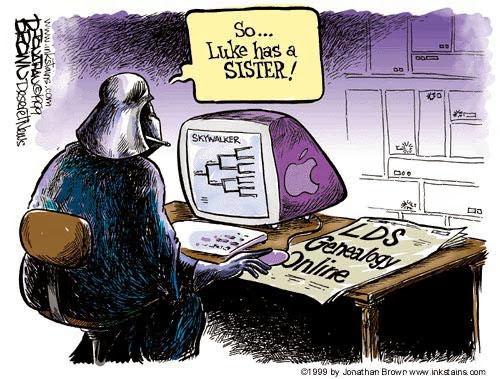
Unexpected Discovery
Along with "Prayer" I guess we can add "The Force" or for some people even "The Internet" to our toolkit I suppose. Just make sure you use genealogy for good, not evil, okay?

Friday, November 08, 2013

Wednesday, September 11, 2013
Cousins!
In case you've ever wondered about cousins, here's a simple flowchart mapping out who is who. Simply put a cousin is someone who has the same grandparents as you, so a second cousin wold have the same great grandparents, and on and on.

Tuesday, June 04, 2013
Genealogy Checklist For Beginners!
 So you want to work on your family history and you're looking for a checklist of what exactly to do to find someone - including where to search and what to look for, step by step by step - check check check. Right?
Well, truth be told genealogy isn't an exact science. There are different documents in different places, some have been lost, some deliberately destroyed, others accidentally destroyed, others haven't bee made public, names changed, nicknames got used instead of real names, people lied on documents, places changed, governments changed, languages changed....you get the picture.
Every family tree is different and every genealogist has a different focus and a different set of problems because you're searching for INDIVIDUALS. And there have been about 107,000,000,000 (One hundred seven trillion) individuals with different life stories and migrations and countries and parents and histories and careers and documentations lifespans across the planet.
So your checklist?
Other than some general research guidelines...it doesn't really exist.
HOWEVER - I could break Genealogy down into three areas of knowledge:
- Sources of info
- Organization & Documentation
- How to interpret info
Once you get organization down you'll have that forever, don't need to keep learning it. That's pretty simple.
How to interpret info is fairly standard with variations depending on areas and time periods and once you got that down you're pretty on top of things.
The last is sources of info. That's ongoing depending on who you're researching when and where (i.e. you aren't going to look in the Beverly Massachusetts courthouse for records for Multnomah County Oregon) and you'll have the help of the Holy Ghost in many instances on this one. But there are some pretty standard sources that don't require extensive information down once you got the basics down. This doesn't have to be overwhelming!
If I was going to write a genealogy checklist for a beginner it would be this:
1) Learn the basics (This website is a good place to start)
2) Start with yourself
3) Focus on one family or individual at a time (Take your time!)
 |
| All in a days work....or millenia |
4) Go after the low hanging fruit
5) Keep learning
6) Take your time and HAVE FUN!
If you're not having fun you're doing it wrong. You will be much more successful if you have the spirit and that's much easier if you're having fun. A little bit here, a little bit there. Rome wasn't built in a day. Trees don't grow over-night.
My advice though? Pray for help from the Lord and seek His guidance in doing this work and I testify you will be blessed and find the help you need through Him and will come to understand this work much faster.
Sunday, April 21, 2013
Computer Care and Maintenance Tips: Speeding Up Your Computer
For those of us doing genealogy and conducting research, nothing makes genealogy more annoying than a slow computer. Except for losing all your work.
So, what follows are tried and true methods for keeping your computer safe and secure and protecting your genealogy. This is a few hours of work but mostly consists of just letting your computer run through its own paces and on many of these operations you can continue to work on stuff on (Not during the Checkdisk feature and the Ccleaner running).
1) Virus protection.
 Virus protection is necessary but you don't have to pay for virus protection in order to keep your computer secure so long as you are engaging in safe practices and online habits. For free virus protection, I use Avast software, there is also AVG.
Other sites such as Norton do provide good service, but Norton in my experience slows a computer down because of the real-time scanning that it does. But by surfing the web responsibly and not visiting sites of a morally questionable nature (those are slam packed with viruses), you'll get by just fine with Avast. Also, Norton costs money and I switched to Avast from Norton when I ran out of money once. You can pay for the deluxe features of Avast or AVG but that's up to you. Some people get by fine with their computer's firewall. Me, I prefer an actual security system like Avast. (This isn't to be taken as an endorsement, I'm just writing from my experience here).
Do not have more than one security program running at a time. You only need one security system. If you run two systems, then one program runs, then the other, then they check each other out, then they check your computer, and two programs basically take four times as much time to operate as if you were just running one. If you don't have one, pick one and install it and run a system scan. This can take an hour or so but otherwise you can work while it is operating.
2) When you install programs - *DO NOT SELECT AUTO UPDATE FEATURES* (except on your virus scanners) YOU want to have control of your computer, not the programs. When you select to let a computer automatically check for updates, over the lifetime of your computer, you'll install fifty programs or so. Then when you turn your computer on, you have 50 programs all trying to connect to the internet and wanting to see who is up to date and downloading info and you just want to type a letter but you have to wait on all your programs to finish hijacking your computer before they will let you use it. Also, do not select to allow them to start on startup. You don't need a lot of programs to run on startup. Just a couple like your virus scanner. You don't have to have your word processor open on startup for example, that can open up when you click on a document or choose to open it.
If you wish to, open up programs and check their options to keep them from auto updating and running on startup. It can take some time but really speeds your computer up.
 3) Download www.ccleaner.com - " Ccleaner will clean out all the old cookies and stored data that clogs up the memory on your computer. The worst case I'd seen running this on a computer was 80 (eighty) CD's worth of clutter hogging memory and running it took a 20+ minute startup time down to less than 2 minutes. Also it will run a registry check to clean out your computer's startup checklist. Your registry is a checklist of sorts that your computer goes through on startup telling it what to do. As programs get updated etc. the checklist doesn't get updated. So running Ccleaner and doing a registry check will help clear out defunct items on your computer. When it asks you if you want to backup your registry? Check "Yes" and save it to your desktop. That way in case something goes wrong, you can click on it and restore the checklist back to its former state. I've never had a problem, but this is just being safe. I run Ccleaner usually about every other day to clean out my computers and empty out the recycle bins.
4) Clean up your desktop. Desktops take RAM (Random Access Memory) or just memory to keep going. The more stuff you have on it, the more memory it takes to operate your system. I often keep only the most essential stuff on my desktop and the rest I put into a folder called "Desktop Stuff."
5) Get rid of ad-ware/mal-ware. Ad-ware/mal-ware are programs that track everything you do on your computer in order to send advertisements to you based on your activities and these come with things you've downloaded and installed in the past depending on your use history. Download Malwarebyes and Spybot. (No really, do it). Select advanced options and run the free versions of both and make them NOT run on startup, but have them scan your computer. These two will clean out a ton of stuff that's probably slowing your computer down. Both of them will find things the other didn't so running them both will find a lot of stuff you haven't found. They'll take over an hour each probably but will find some stuff you didn't know you had for sure. I've used these and am pretty pleased with them as well. You can keep using your computer while they run.
 6) Set your computer to defrag on a regular basis. Your computer, when operating, throws data wherever it can in the fastest time in order to operate swiftly. This is akin to just throwing papers into your office and shutting the door and counting your papers as "saved" or "filed." It certainly is fast, but digging through them takes more time. What this means is your files become "fragmented" - or " a bit here, a bit there, a lot over there" all over your hard drive. Defragmenting - or defragging
- organizes everything and puts it in order so it can be found much faster. For a Windows computer, click on "Start" on the lower left, then click "My computer" then click the "C:" drive, then right click and select "Properties" - click "Tools" up at the top, and then find the "Defrag" option. Click it and run it. Also if you can set it to run every week like at Wednesday 1am, it will regularly clean up operations. If your computer needs a bit of TLC this feature can take an hour or so. You can still use your computer while it is doing this but it does take a while to do.
7) Run a Chkdsk - or Check Disk Feature. This allows your computer to find errors on the hard drive and fix them and helps keep your system from crashing by finding what's wrong with your drive and repairing it as needed. This will happen over time with any system generally, but running a Chkdsk on a semi-regular basis (every few months or so - 2x a year is pretty sufficient usually) will help keep your computer from crashing due to data errors (other things can crash a computer but at least it won't be due to data errors). Like the Defrag feature, go to "Start" - then "My computer" - select "C:" and then right click and select "Properties" - then select "Tools" at the top and select "Error Checking" and then check both boxes to check the disk for errors and scan for and attempt recovery of bad sectors. You won't be able to do this with your computer running, so schedule it to happen the next time your computer restarts. *WARNING* This feature takes a few hours to carry out and *can*not*be*interrupted* so - if you do it - be prepared to not be able to use your computer for a while. When you are ready, just set your computer to re-start and then it will do it on its own and you can let it fix its self.
8) Cut down on the number of toolbars you have on your internet browser. If you like having a two inch window at the bottom of your computer screen, that's fine, but these are just unecessary usually.

After you've done all this, just running Ccleaner every now and then should clean up a lot of issues and then defragging your hard drive weekly (can be auto scheduled) and you should notice a great deal of an increase in speed. There are other things you can do like uninstalling unecessary programs and freeing up space which can be done in the "Tools" section of Ccleaner but that's up to you. If you don't know what it is, leave it alone. Either way, this is several hours of work (most of it just waiting) but you should notice a dramatic improvement in speed after you get done doing all this.
Important note, however? Computers age. Systems get upgraded, programs require more and more features to run eventually. So even when you do take care of your system, eventually what you're accessing on the internet is going to require more than your computer was initially built to run - i.e. the programs are designed for newer systems and you're using an older one. Eventually, your computer is going to seem really slow anyways with the constant changes and advances in software programming and system requirements. But doing this can help it keep up much better much longer than it would otherwise.
Happy hunting with your genealogy much faster now!
So, what follows are tried and true methods for keeping your computer safe and secure and protecting your genealogy. This is a few hours of work but mostly consists of just letting your computer run through its own paces and on many of these operations you can continue to work on stuff on (Not during the Checkdisk feature and the Ccleaner running).
1) Virus protection.
 Virus protection is necessary but you don't have to pay for virus protection in order to keep your computer secure so long as you are engaging in safe practices and online habits. For free virus protection, I use Avast software, there is also AVG.
 Other sites such as Norton do provide good service, but Norton in my experience slows a computer down because of the real-time scanning that it does. But by surfing the web responsibly and not visiting sites of a morally questionable nature (those are slam packed with viruses), you'll get by just fine with Avast. Also, Norton costs money and I switched to Avast from Norton when I ran out of money once. You can pay for the deluxe features of Avast or AVG but that's up to you. Some people get by fine with their computer's firewall. Me, I prefer an actual security system like Avast. (This isn't to be taken as an endorsement, I'm just writing from my experience here).
Do not have more than one security program running at a time. You only need one security system. If you run two systems, then one program runs, then the other, then they check each other out, then they check your computer, and two programs basically take four times as much time to operate as if you were just running one. If you don't have one, pick one and install it and run a system scan. This can take an hour or so but otherwise you can work while it is operating.
2) When you install programs - *DO NOT SELECT AUTO UPDATE FEATURES* (except on your virus scanners) YOU want to have control of your computer, not the programs. When you select to let a computer automatically check for updates, over the lifetime of your computer, you'll install fifty programs or so. Then when you turn your computer on, you have 50 programs all trying to connect to the internet and wanting to see who is up to date and downloading info and you just want to type a letter but you have to wait on all your programs to finish hijacking your computer before they will let you use it. Also, do not select to allow them to start on startup. You don't need a lot of programs to run on startup. Just a couple like your virus scanner. You don't have to have your word processor open on startup for example, that can open up when you click on a document or choose to open it.
If you wish to, open up programs and check their options to keep them from auto updating and running on startup. It can take some time but really speeds your computer up.
 3) Download www.ccleaner.com - " Ccleaner will clean out all the old cookies and stored data that clogs up the memory on your computer. The worst case I'd seen running this on a computer was 80 (eighty) CD's worth of clutter hogging memory and running it took a 20+ minute startup time down to less than 2 minutes. Also it will run a registry check to clean out your computer's startup checklist. Your registry is a checklist of sorts that your computer goes through on startup telling it what to do. As programs get updated etc. the checklist doesn't get updated. So running Ccleaner and doing a registry check will help clear out defunct items on your computer. When it asks you if you want to backup your registry? Check "Yes" and save it to your desktop. That way in case something goes wrong, you can click on it and restore the checklist back to its former state. I've never had a problem, but this is just being safe. I run Ccleaner usually about every other day to clean out my computers and empty out the recycle bins.
 4) Clean up your desktop. Desktops take RAM (Random Access Memory) or just memory to keep going. The more stuff you have on it, the more memory it takes to operate your system. I often keep only the most essential stuff on my desktop and the rest I put into a folder called "Desktop Stuff."
 |
| Whenever I see this on people's computers I want to scream.... |
5) Get rid of ad-ware/mal-ware. Ad-ware/mal-ware are programs that track everything you do on your computer in order to send advertisements to you based on your activities and these come with things you've downloaded and installed in the past depending on your use history. Download Malwarebyes and Spybot. (No really, do it). Select advanced options and run the free versions of both and make them NOT run on startup, but have them scan your computer. These two will clean out a ton of stuff that's probably slowing your computer down. Both of them will find things the other didn't so running them both will find a lot of stuff you haven't found. They'll take over an hour each probably but will find some stuff you didn't know you had for sure. I've used these and am pretty pleased with them as well. You can keep using your computer while they run.
6) Set your computer to defrag on a regular basis. Your computer, when operating, throws data wherever it can in the fastest time in order to operate swiftly. This is akin to just throwing papers into your office and shutting the door and counting your papers as "saved" or "filed." It certainly is fast, but digging through them takes more time. What this means is your files become "fragmented" - or " a bit here, a bit there, a lot over there" all over your hard drive. Defragmenting - or defragging - organizes everything and puts it in order so it can be found much faster. For a Windows computer, click on "Start" on the lower left, then click "My computer" then click the "C:" drive, then right click and select "Properties" - click "Tools" up at the top, and then find the "Defrag" option. Click it and run it. Also if you can set it to run every week like at Wednesday 1am, it will regularly clean up operations. If your computer needs a bit of TLC this feature can take an hour or so. You can still use your computer while it is doing this but it does take a while to do.
7) Run a Chkdsk - or Check Disk Feature. This allows your computer to find errors on the hard drive and fix them and helps keep your system from crashing by finding what's wrong with your drive and repairing it as needed. This will happen over time with any system generally, but running a Chkdsk on a semi-regular basis (every few months or so - 2x a year is pretty sufficient usually) will help keep your computer from crashing due to data errors (other things can crash a computer but at least it won't be due to data errors). Like the Defrag feature, go to "Start" - then "My computer" - select "C:" and then right click and select "Properties" - then select "Tools" at the top and select "Error Checking" and then check both boxes to check the disk for errors and scan for and attempt recovery of bad sectors. You won't be able to do this with your computer running, so schedule it to happen the next time your computer restarts. *WARNING* This feature takes a few hours to carry out and *can*not*be*interrupted* so - if you do it - be prepared to not be able to use your computer for a while. When you are ready, just set your computer to re-start and then it will do it on its own and you can let it fix its self.
8) Cut down on the number of toolbars you have on your internet browser. If you like having a two inch window at the bottom of your computer screen, that's fine, but these are just unecessary usually.

After you've done all this, just running Ccleaner every now and then should clean up a lot of issues and then defragging your hard drive weekly (can be auto scheduled) and you should notice a great deal of an increase in speed. There are other things you can do like uninstalling unecessary programs and freeing up space which can be done in the "Tools" section of Ccleaner but that's up to you. If you don't know what it is, leave it alone. Either way, this is several hours of work (most of it just waiting) but you should notice a dramatic improvement in speed after you get done doing all this.
Important note, however? Computers age. Systems get upgraded, programs require more and more features to run eventually. So even when you do take care of your system, eventually what you're accessing on the internet is going to require more than your computer was initially built to run - i.e. the programs are designed for newer systems and you're using an older one. Eventually, your computer is going to seem really slow anyways with the constant changes and advances in software programming and system requirements. But doing this can help it keep up much better much longer than it would otherwise.
Happy hunting with your genealogy much faster now!
Sunday, January 06, 2013
GEDCOM FILES!
 Ever wanted to take a family tree from one place and put it in another place on another program or computer?
 Like, you've got a family tree and wish to share it with Ancestry and don't want to hand type the entire thing.
Or you've got a family tree and want to load it up into Family Search Family Tree.
Or say you've got a tree on Ancestry but want to put it into your own personal software.
Not to worry! Have no fear!
All of this can be done no sweat using a file designed for this purpose called a GEDCOM.
Most genealogy software will create a GEDCOM File which is a basic file that can be created by most genealogy software programs and uploaded by another genealogy software program.
Shout out to the Church of Jesus Christ of Latter Day Saints, the GEDCOM file is an LDS innovation that is now widely used by genealogists worldwide for transferring genealogical information.
So, for example if you have been using PAF (that's what I used to use) but want to upgrade to Legacy or Rootsmagic since support for PAF has ended.
 |
| presto! |
You will have to look up the instructions on each program how to create / upload the file but nearly all genealogy software programs can do it.
Say you wish to upload your entire GEDCOM file into Family Tree for ordinance submissions. That can be done following these instructions right here.
Either way, the GEDCOM file is a staple of genealogy in the computer age and most all genealogy software programs can create them or read them and use them. But knowing what they are is yet another tool in your tool-belt as a genealogist.
Tuesday, January 01, 2013
Using Obituaries to Find Other Clues!
 |
| Another example - this provides a lot of clues to search! |
Obituaries are some of the most fruitful sources of information you'll find.
Why?
Well, how many people get a book written about their lives if they aren't famous?
Not many.
But obituaries? Far more common and they contain a wealth of information about survivors, life stories, marriages, geography, migrations, political service - you name it. Although the more prominent they are the more detailed info they will have in the obituary but nevertheless, these are treasure troves of info!
Remember when you get hung up on someone and are having a hard time finding info, don't just try an obituary, try the obituaries of their relatives to see if they turn up as being mentioned in them.
For example, I'm hung up on looking for more info Jasper Walling and Nelson Walling and am looking for where to look for records for them.
here's an obituary summary I found from Ancestry.com on their father (which leads me to the original copies).
Summary of Obituary in 30 Aug 1897, The Daily Idaho Statesman
Death of J. B. Walling
He passes away peacefully at his home on the Avenue
Was Ill for Seven Years
Large number of Descendents
Funeral to Occur this Afternoon
Jerome B. Walling died yesterday morning at his residence on the Hot Springs Road after a lingering illness of nearly seven years. (Article goes on to relate the following facts in a narrative)
Born in New York on August 24, 1809
Age 9 (abt 1818) moved with parents to Meggs County, Ohio
1825 moved to Fulton County, Illinois
Served in the Black Hawk War under Captain Maxwell
Married Sarah Leverton in Fulton County, Ill on March 4, 1829
Mrs. Sarah Walling died on 2 Apr 1890
1837 the family moved to Iowa
1848 the family moved to Yamhill County, Oregon
1850 elected to the Oregon Territorial Legislature
1851 elected as a Yamhill County Commissioner and served for 4 years
1864 moved to the Boise Valley and resided there ever since
Was responsible for building the Walling Ditch which supplied irrigation water for land the city of Boise
Father of 16 children, 8 of whom survive him: Lucy Loosley of Ft. Klamath, Or; Jeptha Walling of Tillamook, Or; Fletcher Walling of Salem, Or; Nelson Walling of Portland, Or; Jerome Walling, California; Mrs. Clara Mullancy, Glenns Ferry; Mrs. Rosalie Gile Highland Valley, Idaho; Enos C. Walling, Boise.
75 Grandchildren and “goodly number” of great-grandchildren
Was a member of the Masonic Order for 60 years
“He showed good judgment and economy in his business transactions and always held the respect and confidence of his fellow citizens.”
Additional information about this story Description Date 30 Jul 1897 Location Boise, Ada, Idaho, United States
Anyways, I found that Jasper was in California at the time of the Obituary, Nelson in Portland with a whole other treasure-trove of information! About any of this could be a jumping off point for more research.
 I got so frustrated looking for Nelson and Jasper that I went back to their dad's obituary and found a bit more info that I'd overlooked and was able to fan out a bit more as well as glean some more information I hadn't used to round out some other information (like his military service!).
If you get stuck, also go back to the beginning or try working through other relatives as well, sometimes this can open the door you're looking for!
Works Progress Administration Cemetery Indexes
 |
| alllll been written down.... |
In the 1930's President Roosevelt's "New Deal" also included a provision to index graves in the United State through the Works Project Administration (WPA). While the WPA was controversial and considered wasteful by many (it even funded depression era tap-dancing lessons to lift American's spirits!) and eventually was terminated, the work done by the WPA has greatly benefited many aspects of genealogy including grave indexes.
While there isn't a single WPA grave index available online, they are slowly making their way to the internet and being indexed digitally.
Personally, while I am very fond of Find A Grave because of the easy accessibility, my ability to interact with others, request photos, include photos, attach obituaries and link family members, it doesn't have everything in it.
So, if you find you get stuck looking for a grave, do an internet search for a WPA Cemetery Index for the county/state you're looking for and you might just strike gold! From there you can add an entry to Find A Grave and submit a photo request to confirm the info contained in the index.
As always, if a grave is unmarked anymore, request a photo of the empty spot so that others in the future know not to go looking for it still.
Subscribe to:
Posts (Atom)